

Zoho Books is a comprehensive cloud-based accounting and financial management platform designed for small and medium businesses. It enables organizations to automate invoicing, manage expenses, track inventory, reconcile bank transactions, and generate financial reports, all through an intuitive and scalable interface.
Its modern, secure API ecosystem empowers developers to integrate accounting workflows directly into their applications, automate financial processes, and synchronize data across business systems with precision.
In this guide, you’ll learn how to integrate with the Zoho Books API, from setup and authentication to real-world use cases and best practices. Whether you’re new to APIs or building enterprise-grade integrations, this guide will help you implement Zoho Books API integration the right way.
Let’s get started 🚀
What is Zoho Books and Why It Matters
Zoho Books is an end-to-end accounting solution that streamlines essential finance operations such as invoicing, billing, payments, reporting, and compliance. Businesses use Zoho Books to automate routine tasks, gain real-time visibility into finances, and eliminate manual errors.
What Zoho Books Does
Why Zoho Books Matters to Organizations
Zoho Books is a core component of many financial ecosystems because it brings automation, accuracy, real-time visibility, and scalability into a single cloud-based platform.
1. Automation
Zoho Books automates recurring invoices, approvals, payment reminders, bank feeds, expense categorization, and reconciliation. This reduces manual work for finance teams and improves operational efficiency.
2. Data Accuracy
Zoho Books integrates with sales, CRM, payroll, and inventory systems to synchronize data in real time. This reduces discrepancies, maintains clean financial records, and improves audit readiness.
3. Financial Visibility
With dashboards and customizable reports, Zoho Books gives teams real-time visibility into revenue, expenses, cash flow, and projections.
4. Seamless Integration
It supports deep integration with hundreds of platforms, from e-commerce to CRM and HR systems, removing data silos and creating a connected financial ecosystem.
5. Scalability & Flexibility
Zoho Books supports multi-organization setups, role-based permissions, automation rules, and an extensible API framework that scales with business needs.
Important Terminology for Zoho Books API
Before integrating with Zoho Books API, it’s important to understand a few foundational concepts:
- Organization ID: Each Zoho Books company account is represented by an organization_id, and every API call must reference the intended organization.
- Client ID & Client Secret: Generated from the Zoho API Console, these credentials authenticate your application during the OAuth flow.
- OAuth 2.0: Zoho Books uses OAuth 2.0 for secure authorization, requiring scopes, consent, and token exchanges.
- Access Token: A short-lived token included in every API request to authenticate your application.
- Refresh Token: A long-lived token used to obtain new access tokens without user re-authentication.
- Scopes: Define what level of access the app requests, for example:
- ZohoBooks.invoices.ALL
- ZohoBooks.contacts.ALL
- ZohoBooks.expenses.ALL
- ZohoBooks.invoices.ALL
- Rate Limits: Zoho enforces strict usage limits, for example, requests per minute per organization. Exceeding these limits returns 429 errors, so retry logic is essential.See Knit's Zoho Books API directory for the exact current limits by plan.
- Webhooks: Event-based notifications triggered when records change inside Zoho Books, reducing the need for polling.
Zoho Books API Endpoints
Zoho Books offers multiple API modules that enable your application to interact with nearly every aspect of the accounting system.
The table below lists all available modules along with a short description of what each one does.
Zoho Books API Integration Use Cases
Zoho Books API powers a wide range of automation, synchronization, and reporting workflows across industries. Below are impactful, real-world integration scenarios.
1. Sync Invoices and Payments Automatically
Businesses that run SaaS billing systems, order management platforms, or subscription engines often need to reflect every financial transaction inside Zoho Books.
How it works:
- When a customer completes a purchase, your system sends a request to the Invoices API to create an invoice.
- On successful payment, a follow-up call is sent to the Payments API to record the payment.
- Webhooks notify your app when the payment status changes, ensuring systems stay in sync.
This eliminates manual data entry and improves reconciliation accuracy.
2. Real-Time Financial Reporting and Dashboards via API
Zoho Books API can feed financial data into BI tools such as Power BI, Tableau, Looker, or custom dashboards.
How it works:
- Fetch Balance Sheets, Profit & Loss, and Cash Flow via the Reports API.
- Pull data on intervals (hourly/daily) or via event triggers.
- Store reports in a data warehouse for analytics.
This enables decision-makers to track KPIs in real time.
3. Payroll & HR Integration
Although Zoho Books is not a payroll system, many HR or payroll platforms integrate it for:
- Recording salary expenses
- Journal entries for payroll runs
- Managing employee reimbursements
How it works:
- Payroll software updates expense entries via the Expenses or Bills API.
- After processing payroll, journals are added through the Journal API.
This ensures accurate and compliant financial reporting.
4. CRM ↔ Accounting Synchronization
CRMs like Zoho CRM, Salesforce, HubSpot, and Pipedrive integrate with Zoho Books to sync:
- Contacts
- Deals/invoices
- Payment updates
How it works:
- New customer in CRM → Create a Contact in Zoho Books.
- Invoice created in Zoho Books → CRM updates via webhook subscription.
This keeps sales and finance aligned.
5. Expense Management System Integration
Tools like Expensify, Fyle, or Zoho Expense integrate with Zoho Books for automated expense recording.
How it works:
- Employee submits an expense report.
- Expense is posted to Zoho Books via Expenses API or Bills API.
- Payments or reimbursements are updated using Payments API.
6. Inventory & E-commerce Integrations
Zoho Books API is widely used in e-commerce ecosystems.
How it works:
- Orders reduce stock through Items API.
- Invoices are generated via Invoices API.
- Bank feeds reconcile incoming payments.
Retailers and marketplaces rely on this for seamless order-to-accounting synchronization.
How to Create a Zoho Books Account and Set Up an Organization
Before you start integrating with Zoho Books, you must create an account and configure your organization.
Follow these steps:
Step 1: Go to the Zoho Books website and click Sign Up.
Step 2: Enter your details, such as email, business name, and country, then click Get Started.
Step 3: Verify your email address using the verification link sent by Zoho.
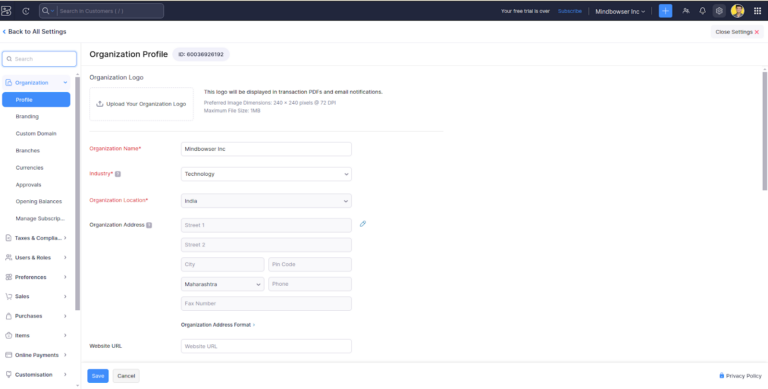
Step 4: Log in to Zoho Books and navigate to Settings → Organization Profile.
Step 5: Fill in your business details, including company name, address, tax information, and base currency.
Step 6: Click Save to complete the organisation setup.
Once these steps are done, your Zoho Books organisation is ready to be used for API-based integrations.
1. Create the Zoho OAuth Client and Configure Scopes
Step 1: Visit the Zoho API Console and log in with your Zoho account.
Step 2: Create a new OAuth client (you can use Self Client for testing or server-side flows).
Step 3: Choose the appropriate client type and enter the required details (redirect URL, app name, etc.).
Step 4: Add the necessary Zoho Books scopes to your client so the integration can access the required resources.
Required Zoho Books permissions/scopes (minimum):
ZohoBooks.contacts.CREATE
ZohoBooks.contacts.READ
ZohoBooks.invoices.CREATE
ZohoBooks.invoices.READ
ZohoBooks.invoices.UPDATE
ZohoBooks.settings.CREATE
ZohoBooks.settings.READ
These scopes ensure your integration can create and read contacts, manage invoices, and access relevant settings in Zoho Books.
2. Generate the Refresh Token
After configuring the OAuth client and obtaining an authorization code, you must exchange it for an access token and refresh token. The refresh token is critical for long-term integration, as it allows you to generate new access tokens without asking the user to log in again.
Use the following API call to exchange the authorization code:
curl --location --request POST 'https://accounts.zoho.in/oauth/v2/token?code=YOUR_AUTH_CODE&client_id=YOUR_CLIENT_ID&client_secret=YOUR_CLIENT_SECRET&grant_type=authorization_code' \
--header 'Cookie: _zcsr_tmp=YOUR_COOKIE; iamcsr=YOUR_COOKIE; zalb_6e73717622=YOUR_COOKIE'
Replace the placeholders with your actual values:
- YOUR_AUTH_CODE - Authorization code obtained after user consent
- YOUR_CLIENT_ID - Client ID from Zoho API Console
- YOUR_CLIENT_SECRET - Client Secret from Zoho API Console
The response will include an access_token and a refresh_token.
Make sure you store the refresh_token, as it will be used to generate new access tokens during ongoing integration.
3. Store Configuration Details Securely
After you successfully obtain the refresh token, securely store the following configuration values (for example, in environment variables, a secrets manager, or a secure properties file):
- Organization ID: The Zoho Books organization you are integrating with
- Template ID: (If applicable) the default invoice/template ID used for document generation
- Refresh Token: Generated via the OAuth token API
These values are required for your application to authenticate against Zoho Books and perform API operations reliably without asking the user to re-authorize frequently.
Why Integrating Zoho Books Directly is Challenging
Before we dive into Knit, you should understand the technical challenges developers run into when they implement Zoho Books on their own:
1. OAuth 2.0 Setup & Token Rotation
Zoho Books requires a strict OAuth setup:
- You need to generate a client ID/secret
- Redirect URL must match exactly
- Token expiry must be managed
- Refresh tokens must be stored
- Revoked access must be handled gracefully
This entire authentication pipeline takes time, security review, and maintenance.
2. Complex Data Structures
Zoho Books schemas are not standard across categories.
For example:
- Invoices have nested line items
- Credit notes differ
- Payments reference various transaction modules
- Expenses map differently than vendor bills
Normalising these is time-consuming.
3. Syncing the Right Data
Developers must implement:
- Initial data fetch
- Delta changes
- Webhooks
- Historical pagination
- Retry policies
4. Handling Rate Limits
Zoho enforces per-minute and per-hour throttling.
If you hit rate limits:
- API calls fail
- Sync jobs break
- You need automatic backoff and retry logic
5. Maintenance and Versioning
When Zoho changes fields or endpoints, your integration breaks. You must maintain compatibility continuously.
How Knit Simplifies Zoho Books Integration
Integrating directly with Zoho Books requires managing OAuth, rate limits, pagination, schema differences, syncing, and ongoing maintenance. Knit removes this complexity by offering a single, unified accounting API that works across Zoho Books, Xero, QuickBooks, and many other platforms.
1. Unified API for All Accounting Platforms
Instead of building and maintaining separate integrations for each accounting system, Knit gives you one standardized accounting schema. Your application sends and receives data in one consistent format, and Knit automatically converts it into Zoho Books’ structure behind the scenes.
2. Simple, Secure Authentication
Knit handles the entire OAuth process for Zoho Books—including authorization, token exchange, refresh logic, and secure token storage. Your app only needs to work with a simple integration_id, eliminating the need to manage credentials or authentication errors.
3. Automatic Data Normalization
Every accounting platform structures invoices, payments, contacts, and expenses differently. Knit normalizes Zoho Books data into a clean, uniform model so you don’t need to write custom mapping logic or manage inconsistent field formats.
4. Real-Time Syncing
Knit automatically syncs Zoho Books data using webhooks and delta updates. It manages retries, pagination, and rate limits so your system always stays up to date without constant polling or complicated sync logic.
5. Faster Time to Market
A full Zoho Books integration can take weeks to build and maintain. With Knit’s prebuilt connectors and unified API, teams can ship accounting integrations in days—while avoiding future maintenance when Zoho updates its API.
Use Cases for Zoho Books + Knit
Knit enables a wide range of real-world workflows when connected with Zoho Books.
Below is a table summarizing the key use cases.
Practical Use Cases
- Pull Invoice Data: After syncing accounting_invoices, your system can GET /accounting/invoices to retrieve all invoices for that user. This lets you display or process invoices without calling Zoho’s API directly.
- Create an Expense: When a new expense report is approved, you can call POST /accounting/expenses with vendor name, amount, date, etc., to log it in Zoho Books.
- Sync Customers: To get up-to-date customer records, sync accounting_contacts. You’ll then get customer data (addresses, billing info) via your webhook, or you can fetch via GET /accounting/contacts. This keeps your CRM in sync with Zoho’s contacts.
- Update Invoice Status: Use PUT /accounting/invoices/{id} to mark an invoice as paid, sent, or void. (This uses Knit’s unified endpoint but updates the Zoho invoice behind the scenes.)
Fetch Payments: Sync accounting_payments and use GET /accounting/payments to see all payment transactions for reconciliations.
These are just examples; Knit’s integration supports all Zoho Books use cases (as listed in our docs) without custom code.
Knit API Endpoints for Zoho Books Integration
Knit provides simple unified endpoints to authenticate users, manage syncs, and retrieve Zoho Books data.
The table below lists the key endpoints and what each one does.
Troubleshooting
- OAuth Redirect Issues: If Zoho returns an “invalid_grant” or similar OAuth error, check that your Zoho OAuth app’s redirect URI exactly matches https://app.getknit.dev/oauth/authorize. A mismatch will prevent login.
- Missing Scopes: Ensure you’ve enabled all necessary Zoho Books scopes (e.g. Contacts, Invoices, Expenses) for the integration. If a scope is omitted, attempts to read that data will fail.
- Test vs Prod Mode: Knit marks each new integration as Test by default. If you’re working with live Zoho data, switch the integration to Production in the Knit dashboard. Otherwise, you’ll only see sandbox data.
- API Limits/Sandbox: Be aware of Zoho’s API limits in sandbox mode. Use the Knit Test environment for development, and then “go live” when ready.
- Token Expiration: Knit auto-handles token refresh, but if you see auth errors in webhooks or API calls, re-authorizing via the Magic Link or UI can reset the connection.
Important:
If you encounter any issues, check Knit’s logs and the webhook payloads (they include error details). The Knit support team can also help diagnose integration hiccups.
Integrating Zoho Books with your product is much faster with Knit. Our unified APIs mean you don’t have to write custom code for every Zoho endpoint, and Knit will handle OAuth, retries, and schema differences automatically. Ready to get started? Connect with us to launch your Zoho Books integration in minutes!
FAQs
Q1: Do I still need to manage Zoho Books access and refresh tokens when using Knit?
A: No, Knit handles the OAuth2 flow end-to-end for you. Once a user authorises via the Knit UI or link, you receive an integration_id, and Knit stores and refreshes tokens internally. You never need to store access/refresh tokens yourself. (Source: Zoho OAuth docs on token expiry and refresh)
Q2: What scopes should I request in Zoho Books when setting up the integration with Knit?
A: You should request only the scopes relevant to your workflows, typically things like invoices, contacts, expenses, payments etc., according to Zoho’s OAuth scope list. If you request too many scopes, you may confuse users or increase risk. To view the available scopes, check Zoho’s documentation.
Q3: How does Knit support data sync for Zoho Books?
A: Knit supports three synchronization modes:
- Initial sync: fetches all relevant historical data from Zoho Books.
- Delta sync: keeps your app updated with newly created or modified records.
- Ad-hoc sync: you trigger whenever needed (e.g., just before a large operation).
Knit abstracts pagination, rate-limit handling, and schema normalization so your code stays clean.
Q4: What if I need a Zoho Books API endpoint that Knit doesn’t cover in its unified model?
A: Use Knit’s Passthrough API. With it, you can send a request to a raw Zoho Books endpoint via Knit (e.g., /invoices/123/approve) and Knit forwards it, handling authentication and request forwarding for you. This allows flexibility for advanced or niche Zoho operations.
Q5: Which data models does Knit currently support for Zoho Books via the unified API?
A: Knit supports major accounting models such as: customers/contacts, invoices, expenses (bills), payments, and items. For Zoho Books, you’ll find these covered out of the box. If you need a custom object or module, you may use the Passthrough method.
Q6: What are common errors or pitfalls when integrating Zoho Books with Knit, and how do I avoid them?
A: Some common issues:
- Incorrect redirect URI in Zoho OAuth setup → authorization blocks.
- Missing scopes → certain data requests fail.
- Rate limit exceeded in Zoho Books API (Zoho lists limits per minute and per day)
- Not enabling the correct data models for sync in Knit → you won’t get the data you expect.
To avoid them: double-check the OAuth setup, enable the required models, monitor error logs and use Knit’s built-in retry/backoff logic.
Q7: Can I test the integration in a sandbox or development environment before going live?
A: Yes - it’s a best practice. For Zoho Books, you can use development or sandbox orgs (or a test account) and configure Knit integration in test mode. Make sure you simulate data flows and webhooks to verify everything before switching to production.

.webp)
.png)
.webp)


